

From an agent’s result to a working document
Create a document from the library or a conversation, name it and place it in a folder. Search titles, content and keywords. Ownership, revision and access information stay with the document.
People and agents work on an identified resource. Links to tasks, goals or other notes bring readers back to the context without copying the entire conversation.
Choose the type when creating a document: HTML for rich text, media and applications; Dataset for JSON data. Its type then stays fixed. Both appear in the same library, with a type filter, personal folders, ownership and history.
One document from request to review
For a report, analysis or lasting note, the agent finds, creates or enriches a Galaris document and reuses its address throughout discussions and delegation. Short answers stay in chat; a technical action does not require an extra report.
Open the document beside the conversation on desktop or in a dialog on mobile. Before sending a revision request, chat waits for saving and tells the agent which document is actually displayed. A failure preserves your draft. The agent can request that it open in internal text chat; this does not share it.
Your filing, without changing anyone else’s
Create personal folders and subfolders, drag documents into place and choose manual or alphabetical order. A reader can file a document and customise its icon without changing content, versions or permissions. Folders, emoji and icons belong to each user’s own view.
The Unclassified filter starts enabled. Turn it off to search all accessible documents, with owner and date filters. Goal documents can be filed automatically under Goals / goal name, based on provenance and access; manual filing is preserved.
Deleting a folder removes filing, not documents. Deleting an eligible document removes its content, versions and files; chat retains a “Deleted document” card without accessible content.
Write, illustrate and structure
In HTML documents, use headings, lists, quotations, code, find and replace, tables with merged cells, links and callouts. Choose page or full-width view, expand the editor or edit the HTML source.
Attach files by selecting, dropping or pasting them. Insert images with captions and alternative text, resize them and adjust wrapping. PDF, audio and video have viewers; interactive HTML attachments and 3D scenes open separately. Turn a web link into a preview card and back.
Applications inside the document
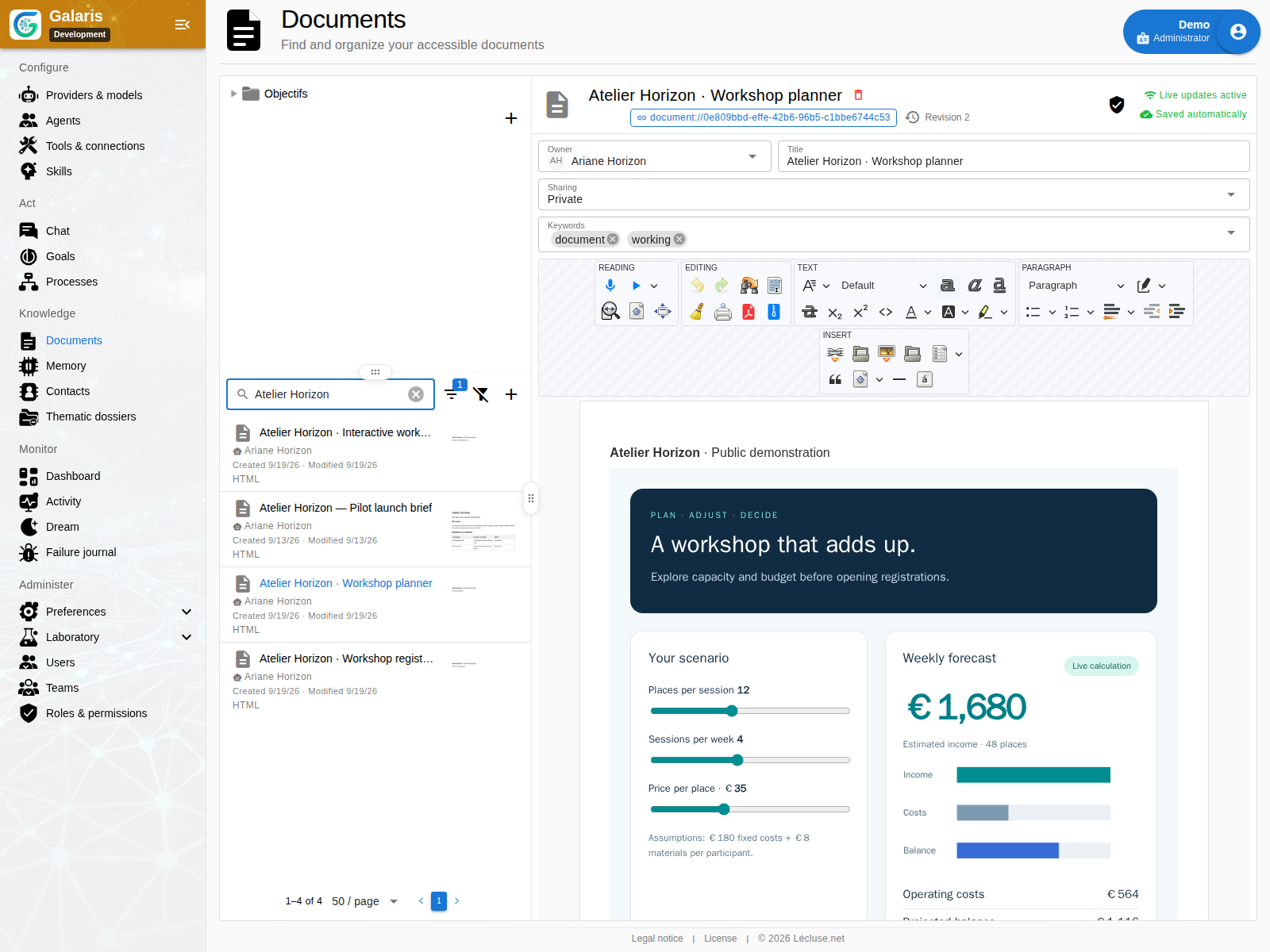
An HTML document can combine explanations, input fields, calculations and charts. Ask your agent for a form, a simulator or a tracking page: it can write HTML, CSS and JavaScript directly into the document.
Saved content runs when opened, in an isolated environment. The toolbar stays available and text remains editable; Source opens the code. Editing or switching to Source stops the affected application, which resumes after a valid save. Required resources must be embedded: ordinary network loads are blocked.
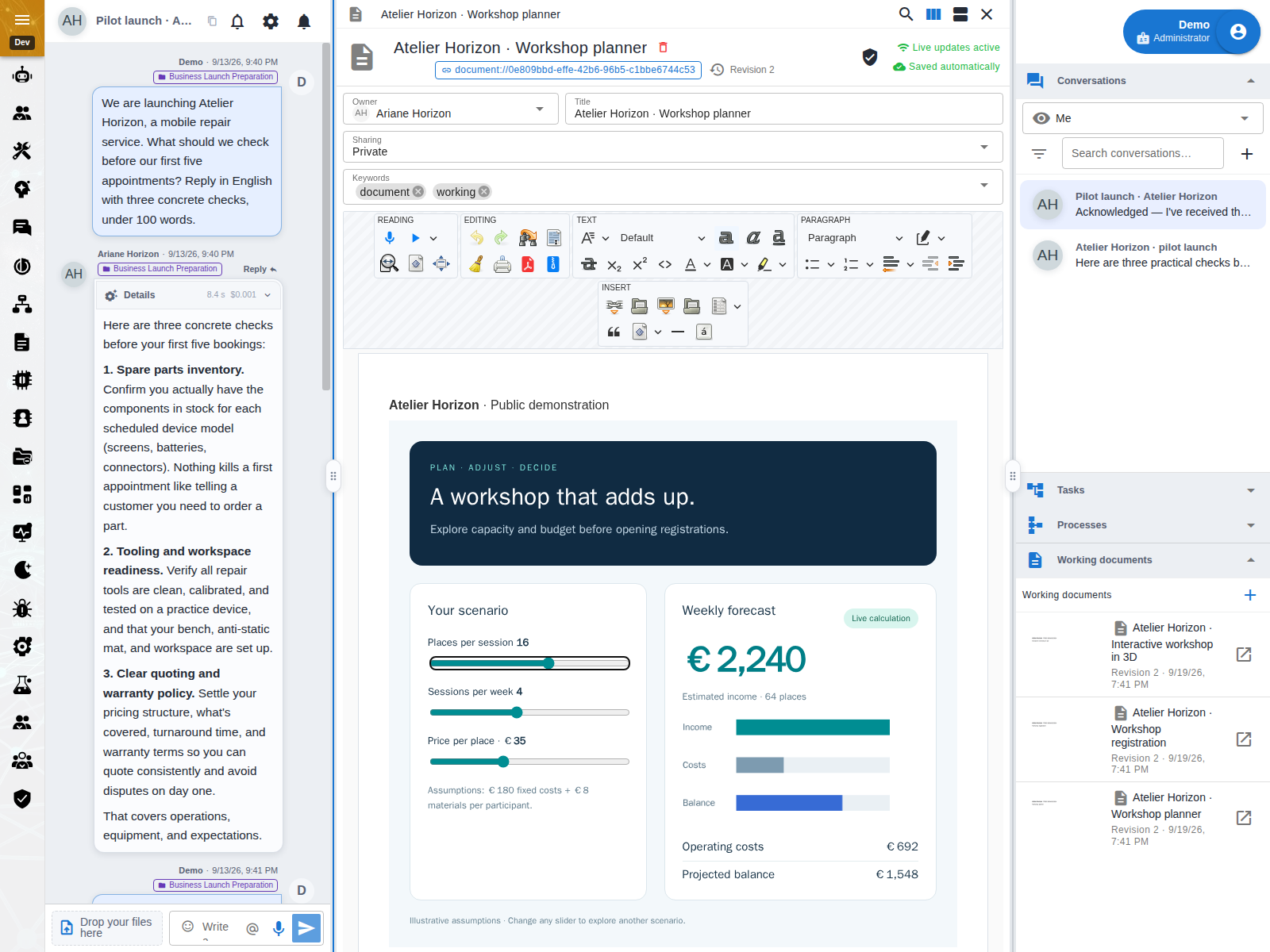
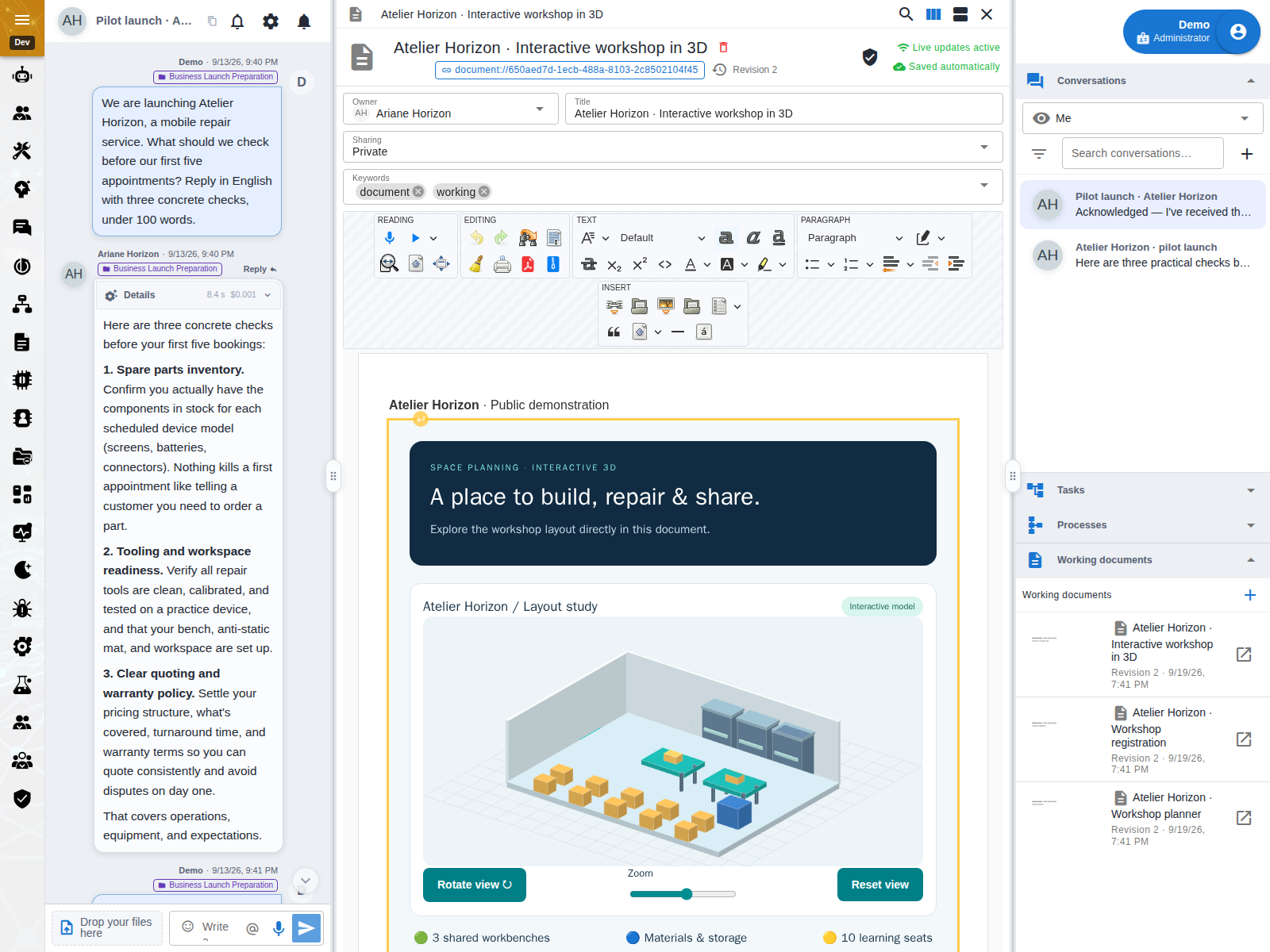
The document remains usable in the chat panel: complete a form, adjust a calculator or manipulate a 3D scene while talking with your agent. Its content and embedded resources must respect the isolation constraints.
Datasets shared across several pages
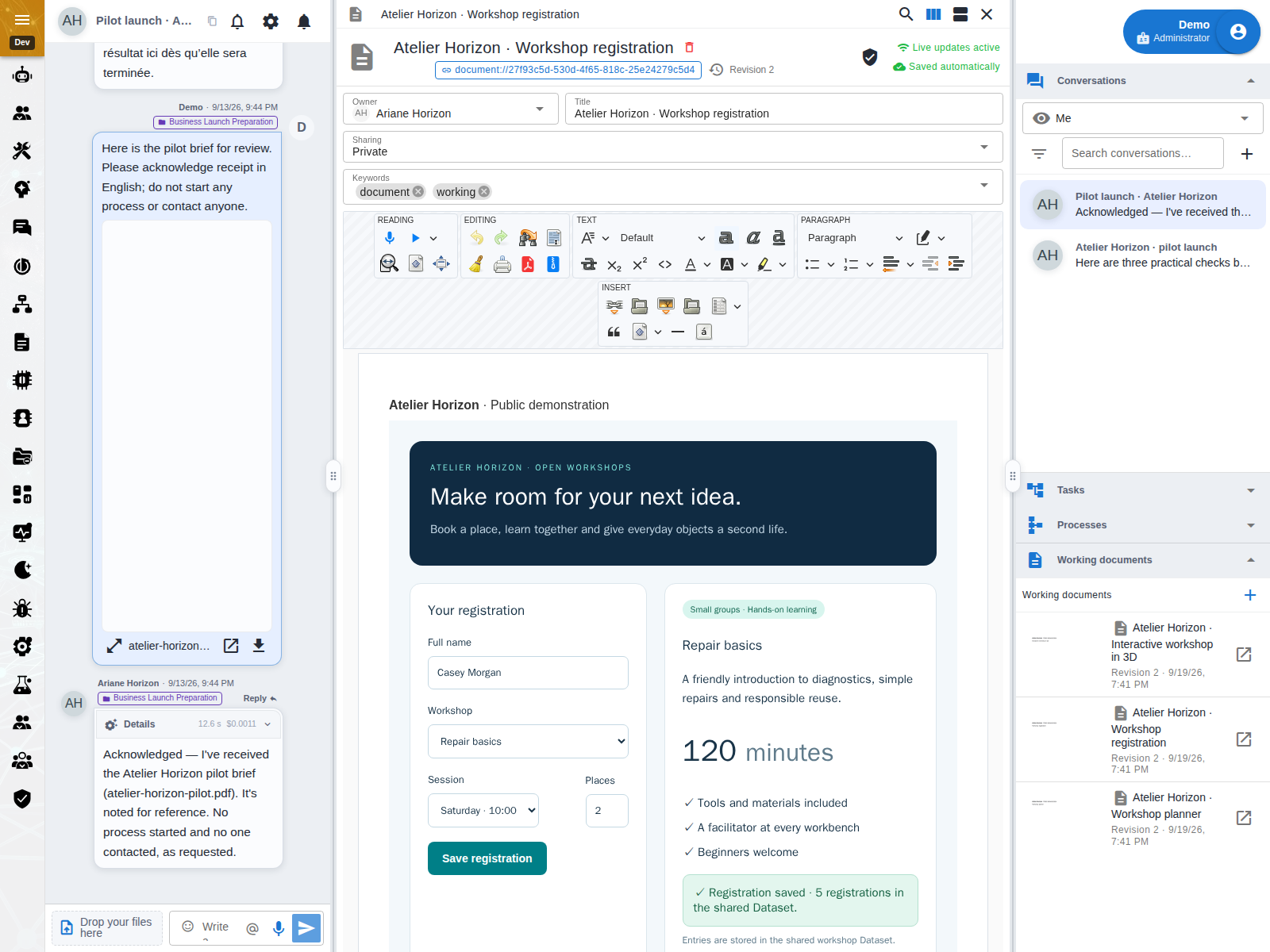
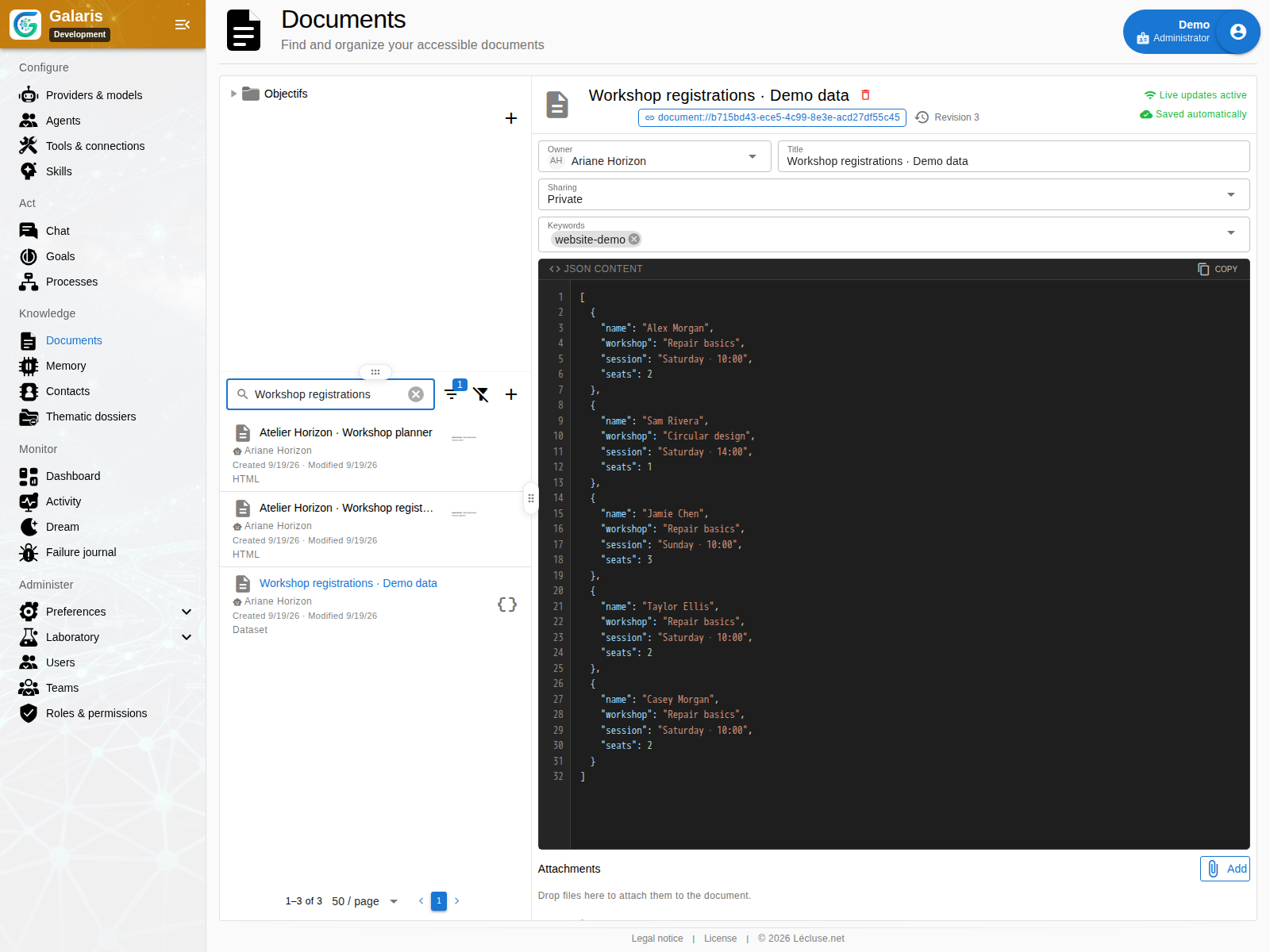
A Dataset is a document containing JSON: form responses, settings or saved scenarios. It has its own permissions, versions and stable address. Several pages can read or update the same Dataset; sharing a page does not automatically share its data.
The JSON editor keeps invalid drafts without replacing saved data. Every write checks the expected revision; a conflict requires reading the latest data before submitting again. An application appends an entry to a JSON array, initially [] for example. Sharing data does not promise instant synchronisation between pages.
Choose what the application may read or change
Through Application permissions, each reader approves Dataset access for the document version they are viewing. Access is denied by default and uses the reader’s current rights, never the authoring agent’s. Editing or restoring content requires fresh consent; changing only the title does not.
Write access allows both appending and replacing the entire Dataset. It may be used as soon as the page opens: review sources and destinations together. Revoking consent blocks subsequent calls without undoing earlier writes. Code receives no session token; isolation does not guarantee that a script cannot overuse browser resources.
Understand application permissions
Revisit a version without losing your draft
Documents save automatically. If someone saves another version, Galaris detects the conflict and preserves your draft for an explicit decision. Browse history, compare content and restore an earlier version as a new revision.
Collaboration uses saves and version checks. It does not merge simultaneous keystrokes. Restoring old content does not restore its old access grants.
Share with the right people
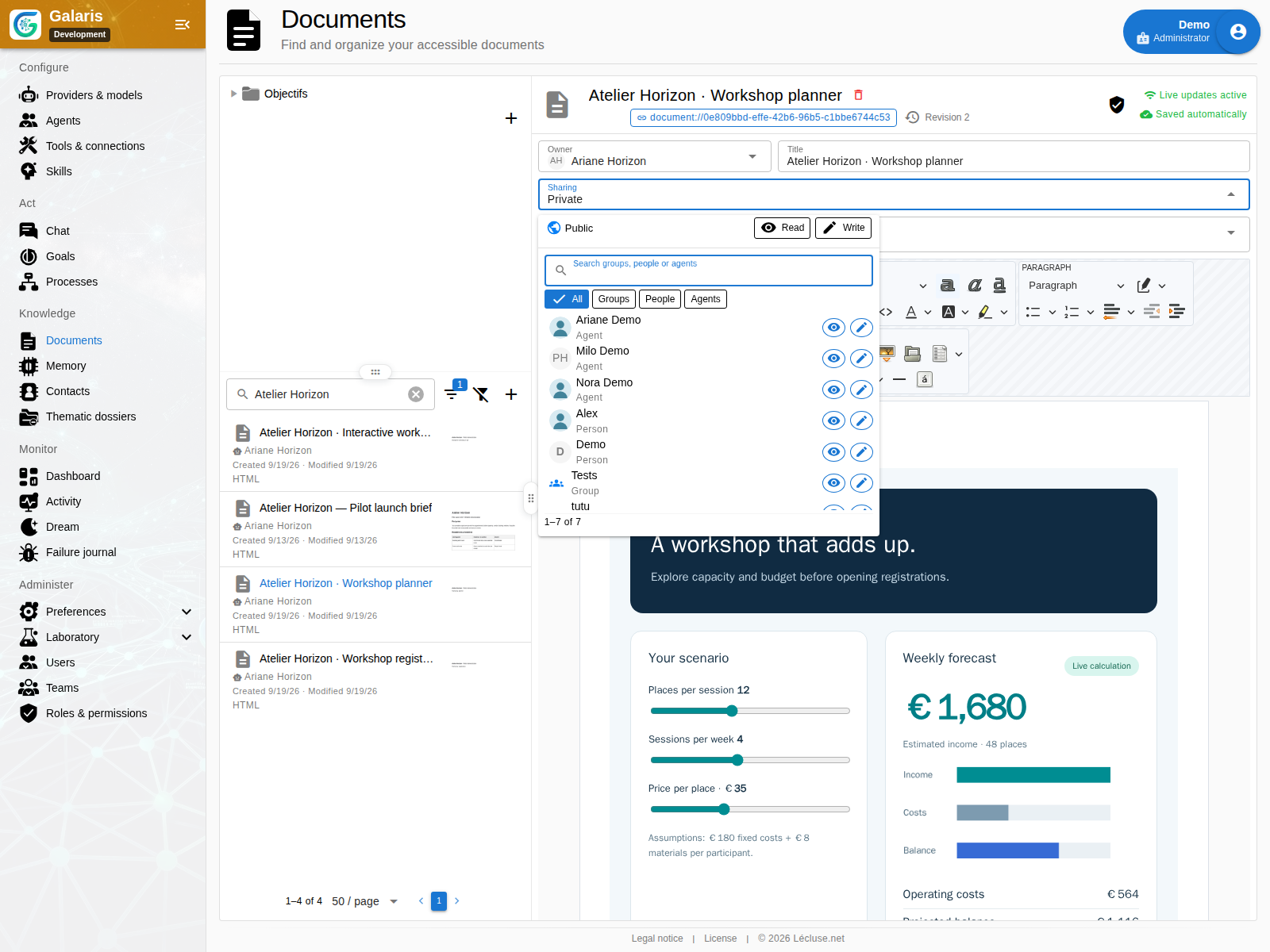
New documents are private. Grant read or write access to a person, an agent, a team or application users generally. Team access follows current membership. Editing does not automatically grant permission to reshare.
An internal link never grants access to its target. “Public” means within the application, not anonymous web publishing. Goal documents retain their domain protections.
Previews and a shareable PDF
HTML document cards show a thumbnail of the saved revision. On compatible browsers, prepare a PDF and share it through an application of your choice; otherwise save it. Exporting a file is separate from granting access inside Galaris.
Dictate, listen and take the result with you
| Need | Feature |
|---|---|
| Add a passage by voice | Dictation at the cursor using your transcription resource |
| Review by listening | Read the selection or document aloud, pause and resume |
| Prepare for a meeting | Print current content, including unsaved edits |
| Distribute a fixed version | A4 PDF export with selectable text |
| Keep files together | ZIP export containing HTML and attachments |
These actions apply to HTML documents; Datasets use their JSON editor. Dictation and playback require their respective AI resources.
For an application embedded in the document, printing, PDF, PDF sharing and the HTML archive retain a static copy of the current display: entered values, results, styles, SVG and canvas images. Capture does not run the code again or write to a Dataset. Layout adapts to the printable width; the export does not stay connected to data.
An unavailable capture is reported, and switching documents cancels preparation. An interactive attachment opened separately is not automatically included in its parent document’s export.